From 0-100 in 3 days with thoughtful AI
The background
The journey begins…
Preparing AI
Building the dashboard
The result
The differentiators
Next?
The background
For years, I've advocated for building dashboards the right way: designing for specific personas, avoiding vanity metrics, choosing appropriate chart types, and preventing cognitive overload. I've written about these principles here and on my blog. I've had to contend with, to varying degrees of success, schedules, roadmaps, competing opinions and goals, and a lack of research or a lack of attention given to research already conducted.
Who wants to hear from those pesky users anyway? All they say is "I want" "I want" or "I want," amirite?
So I decided to put my money where my mouth was and build one myself.
There's just one problem: I don't code. I could build something in Figma, but a working, fully interactive prototype has a different impact than a Figma prototype. And with AI, I could build one in far less time. The catch? I had nothing to start with. No visual language, no data, nothing but personas I'd created in the past, and my own experience (including the blog posts I'd written about building security dashboards the right way).
AI to the rescue.
As I thought through the project, I identified what I needed:
A decision about what kind of dashboard to build and for whom
A persona to guide the design
A design system
A way to teach AI how to build a dashboard
Data to display
Then I realized that all I had was:
A persona
Blog posts on dashboard design
Time to get to work.
I built this in 3 days
Day 1: I did the prep work, from "The Beginning" through part of "The Design System." I defined what I needed, gathered examples, and wrote and ran the prompt.
Day 2: I reviewed the prompt's output, made several tweaks, and saved the finalized design system in Claude. Then I built the dashboard skill.
Day 3: I uploaded everything to Claude, wrote and refined the prompt, and put it to work. I answered Claude's questions, approved or suggested changes to its widgets, and gave it the go-ahead to build the dashboard. Once it was done, I reviewed the result and suggested further changes before saving and publishing the final product: an actual MVP and more - a design artifact ready for user testing.
The journey begins…
I knew AI would have to do some of the heavy lifting, but I'd seen plenty of AI-generated dashboards, and most suffered from the same problems:
Cognitive overload. No dashboard needs 27 widgets or charts. Cramming everything together with 2-4px spacing only makes matters worse.
No clear target persona. If I know the personas involved, I should generally be able to look at a dashboard and identify whether it's designed for an analyst, a team or group manager, or an executive or stakeholder. Yet 9 times out of 10, I can't. The dashboard tries to serve everyone and ends up serving no one particularly well.
Useless metrics.
Poor data visualizations. Often, the chart type was wrong, but other problems included inappropriate color schemes, poor sizing, accessibility issues, and awkward interactions.
Dashboards treated as both the beginning and the end of the journey, rather than the starting point.
There are exceptions. With the right interactivity, a dashboard can serve as both the beginning and end of the journey, especially in applications with limited functionality. That's not what I'm building here, though. My project focuses on the main dashboard and some interactions, not because that's all the application needs, but because I'm demonstrating how AI can build things properly when given the right inputs.
What I've built is enough to demonstrate the approach. I'm also showing how I can go from 0 to 100 in three days, starting with almost nothing and ending with a reusable skill, a reusable design system, and a complete demo: a prototype or proof of concept that can be user-tested and eventually A/B tested.
I'm not just using AI. I'm injecting years of UX experience into it in a way that few developers, product managers, security engineers, or even UX designers do. AI is a tool. How you use it makes all the difference.
Preparing AI to build the dashboard
I decided that the best way to get my expertise, methodology, and expertise into Claude, including what to avoid, was to create a fairly complex skill. The challenge is that complex skills combined with complex prompts can consume a LOT of tokens. I needed a dashboard creation skill that was not only comprehensive but also optimized.
I also needed raw data, a design system, and a dashboard design outline with guidelines and guardrails beyond those already included in the skill.
So, before asking AI to build the dashboard, I needed five things:
A dashboard type
A persona
Data to build the dashboard on
A design system
A dashboard creation skill
Here's how I created each of these:
The dashboard type:
I wanted something simple, but with concepts that could easily transfer to other security dashboards. I also wanted readers who had seen plenty of security dashboards to recognize the practicality and usefulness of what I was building.
I settled on a vulnerability scanner dashboard. These seem straightforward, but are they really? How much actionable, practical value do most of them actually provide?
We shall see.
The persona:
I decided upon a Security Analyst. It's a fairly universal cybersecurity product persona, straightforward to understand, and yet one that many dashboards still get wrong.
I took the image of Adam the Analyst from my website and had ChatGPT convert the PNG into a text file. I then edited the file to remove product-specific references and make a few minor adjustments, including to the ASCII representation of the skill scales.
One key point I emphasized was the persona's primary goal: "What do I need to fix TODAY? What needs attention NOW?"
This is fundamental to an analyst's work, yet most dashboards overlook it.
Vulnerability scanner output data:
I've used and worked with vulnerability scanners since the first commercial tools appeared in the mid-1990s.
I started with basic output fields, including CVSS scores, CVE names and numbers, scanned asset or host names, IP addresses, last scan dates, and a few others. I fed these into Claude and asked whether typical vulnerability scanners included any additional fields I was missing.
After reviewing its suggestions, I filled in the gaps and asked Claude to generate a CSV file of fictional scan data. I provided the fields and set several constraints:
The data had to represent a single scan.
IP addresses had to use RFC 1918 private IPv4 ranges.
The dataset had to contain 100 rows.
A vulnerability could appear on multiple hosts, and a host could have multiple vulnerabilities.
All CVEs had to be from the previous six years.
I wasn't expecting much trend data to be relevant to a Security Analyst, so I focused on generating a useful snapshot of scan results.
Finally, I imported the CSV into Google Sheets to check the data. Everything looked good.
A Design System:
I needed a design system with both light and dark modes. What I didn't want was the generic AI aesthetic: gradients everywhere, inexplicable amounts of purple, and elements that were either oversized or crammed together. Sometimes both.
I also wanted the design to meet WCAG 2.1 AA accessibility requirements. No light gray text on a slightly darker gray background!
Color usage needed clear rules, too. Severity colors had to be reserved for severity, with one exception:
Critical: Red
High: Orange
Medium: A darker shade of yellow
Low: Blue
No green for Low severity. Green means "good to go," and Low doesn't mean that.
Gray would represent an Unknown severity status, but it wouldn't be reserved exclusively for that purpose.
The exception was red (okay, AND orange). It could also be used for destructive action buttons, and for comparable application states, including errors (notifications, toasts, and form validation errors), and warnings (orange notifications, toasts).
I had to start somewhere though, so searched for templates and designs with the widget and table styles I wanted. I also wanted an accent color that was a little more distinctive than the black, white, and blue palettes common in cybersecurity applications.
Once I found some screenshots I liked, I uploaded them to Claude and prompted it to create a design system using my requirements and restrictions.
The first version needed a few adjustments. Some severity tags were too dark and could disappear into the background, and redundant glyphs were being used to indicate severity. I kept those in the design system as alternatives, however.
I also reserved purple for AI-related content. A few errors remained. For example, Claude turned a button that should have used the tertiary style purple instead, despite being asked twice to correct it. Ugh.
It was good enough, and I didn't want to burn through more tokens when I still had a dashboard to build. I applied the remaining tweaks and saved the design system.
It should be noted that Anthropic recently changed Claude Design and integrated it directly into Claude. The Tweak toggle and ability to edit individual elements directly in the preview appear to have disappeared. Grrr! The separate Claude Design token bank was also rolled into the main Claude token bank, potentially making it easier to exhaust my allocation. Double-Grrr!
Still, I now had a basic design system that would work nicely for the project.
The Dashboard Creation Skill
Okay, this was the big one. It took an entire day, mostly spent writing and editing. The AI part was easy.
I started with my How to Build a Security Dashboard articles and distilled them into a simplified version. I removed explanatory text Claude didn't need, trimmed the content, and reorganized it until I had what I thought would make a good skill.
It was still long.
The skill included instructions for handling missing personas. If the prompt didn't specify one, Claude should ask for it. If the user had none, Claude was to offer a list of suitable personas, and allow the user to have Claude generate one.
It also incorporated the guidance from my blog posts, including:
Start with a persona and understand their Job To Be Done.
Identify the data needed to build a relevant, actionable dashboard for that persona.
Give every widget some form of interactivity.
Avoid cognitive overload, bias, and vanity metrics.
I then asked Claude to complete several steps (in a single prompt to save tokens):
Organize and optimize my content.
Convert it into the proper skill format.
Optimize it again to reduce token usage. Do I look like Scrooge McDuck?
Deliver it as a downloadable Markdown ( .md) file.
After reviewing the result and making a few minor tweaks, I had my How to Properly Build a Security Dashboard skill ready to use.
Building the dashboard
I uploaded the persona file, the CSV containing the scanner data, and the dashboard creation skill to Claude. I also told it to use the design system (which was the only one available anyway).
I provided the project brief, referenced the uploaded persona and data files, and reiterated that Claude must use the uploaded skill file.
I added several other requirements, including:
Output format: A working HTML/CSS/JavaScript prototype.
Clarifying questions: Ask me any necessary questions before building anything.
Review before implementation: After following the process outlined in the skill, describe each planned dashboard element in text, one at a time, so I could review it before construction. For each proposed element, I wanted Claude to explain:
What visualization it would use, even if that visualization was simply text.
What data it would display and what relationship it was intended to show.
Why that data was appropriate for the persona.
And more.
For charting, I asked Claude to use Highcharts if it was free, D3, or another free charting library. It ultimately built the charts itself using SVGs, which was perfectly fine for this project.
I emphasized progressive disclosure and the dashboard's role in the user's workflow.
I reiterated the design system's color restrictions and the requirement to meet WCAG 2.1 AA accessibility standards.
During the process, Claude identified that the KPIs needed one week of trend data and explained how it could be generated. I told it to create the data itself.
It also pointed out that I was missing the Known Exploited in the Wild indicator for CVEs, so I had it add that field.
Finally, I had Claude organize the KPIs from left to right, moving from broad to narrow. Together, they needed to tell a story:
What's the state of the system, and what do I need to do NOW, FIRST?
The result
See the LIVE, interactive dashboard here!:
View Dashboard
Sample (dark mode)

~

Sample (light mode)

~

A simple workflow example:
1) View and understand the first, and most important KPI for the security analyst ("Act Today"):

2) Click on it and you are taken to the table, filtered by the KPI (16 lines for this KPI):

3) Click on the first row, the most critical item with a Risk score of 100, and the sidebar will open:

4) Here we have the full overview of the CVE. Still don't understand the vulnerability description? Links are provided directly to the CVE entry for this vulnerability where the user can read the full details!
The weighted risk score of 100 is explained with the risk formula detailed right below the score.
Lets just right to the View remediations button at the bottom:

We will ignore the Create ticket option for this workflow demo (I don't have a ticketing system integration. Yet. :) ), and click right on the View remediations button.
5) This screen has a brief description of the remediation process, and then it has step-by-step instructions on how to fix the vulnerability. A human operator could follow these steps manually. It even shows them the permissions that are required to do the job. But for this workflow, we want to see how it would work if we want AI to fix it for us.
We look at the permissions needed, but not granted for remediation-agent-01, and we click on the "GRANT AI PERMISSIONS" button

6) We get explicit instructions on how to grant the security tool's AI the permissions. Once we have done that, we click on "I've granted it" and repeat this process to the end.

7) We can retest the permissions to make sure that we didn't miss anything or screw anything up.
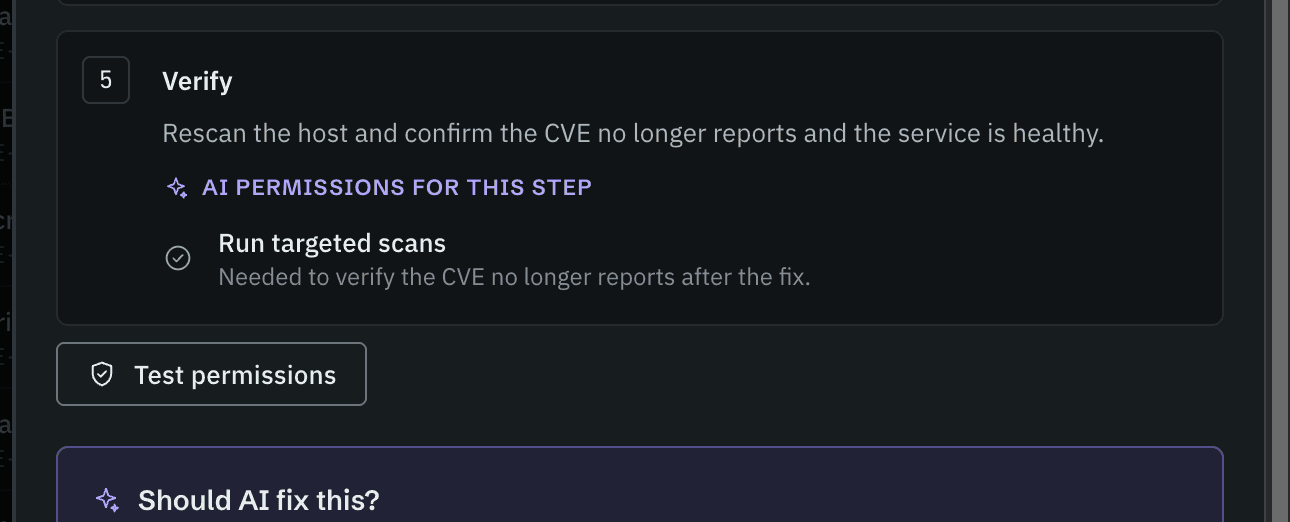
It looks like we're good!
Now we can actually allow AI to fix this for us! We check the box:

.

8) Here's the fun part:
When we click on the "Allow AI to fix" button (I know, readability issues - see my "Things I would do next" section), and the fixes aren't just an invisible process! We can actually sit there and see the AI go through the steps to fix things, and verify the fixes:

(i couldn't screen cap this fast enough to show the stages where some things are checked green and some are not. I encourage you to go through and play with the dashboard yourself!)
The Differentiators
What makes this dashboard different (by design) from 90%+ of the security dashboards out there?
Prioritization
Prioritization frameworks or scoring models are hard, and I think this is where many dashboards stumble: They just rely on event severity. Great. But what happens when you log in one morning and find 3,000 "Critical" events? Now what? Some dashboards do have a prioritization scoring model, but it is often too simplified or kept secret from the user.
Users need proper prioritization guidance, not just severity labels.
Severity alone isn't a prioritization strategy. So what is? Look at how CVSS scores are calculated. You'd think you need an actuarial scientist to develop a proper prioritization framework! (These days, AI might help with that. That's what I used here.)
Get prioritization wrong, and you risk losing your customers' trust. You can't just cobble something together willy-nilly. I've personally witnessed this happening, with people who had no idea what they were doing developing the prioritization scoring model.
Customers expect YOU to be the expert.
Security professionals are stretched thin. They're often expected to be jacks of all trades, or they're thrown into roles with little experience. I've seen this throughout my 30-year career in cybersecurity. Finding someone with deep expertise in the specific field your tool addresses is rare. Vulnerability management is one thing, but security identity management in the cloud, across multiple identity providers? Forget it. That's a unicorn. And those experts aren't typically analysts; they're at least managers.
That means your actual users depend on you, the vendor, and your team of developers and security experts to tell them what's important and, more importantly, what matters NOW.
If you can't hire an actuarial scientist to develop a sound prioritization scheme, at least explain how your priority scores are calculated so users can make their own informed decisions. Transparency is key to trust.
I'm not an actuarial scientist, either, so I had AI develop the scoring model. The dashboard details panels explain it right where users need it.
Here's how my dashboard helps users prioritize:
Start with what needs attention NOW. The first KPI immediately answers the question, "What do I need to do right now?"
Break it down further. Additional KPIs help users narrow their focus.
Explain the prioritization scheme. The methodology is visible right on the dashboard (via a tooltip, and also directly on the details side panel).
Make every KPI interactive. Click the first "What do I need to do right now?" KPI, and the table in the second row automatically filters to show only those items. The other KPIs work the same way.
Highlight the biggest wins. Sometimes, a single fix can resolve dozens of medium-severity issues in less time than it takes to fix one high-severity issue. The dashboard surfaces these high-impact, low-effort fixes, something almost no other security dashboard does. We're talking the biggest bang for the buck here!
Unlike so many dashboards on the market, this one doesn't just identify problems. It helps users work more effectively and efficiently, improving the security of their environments in far less time.
It doesn't overwhelm. It focuses.
It's not just an analyst's tool. It's the analyst's partner.
But wait, there's more…
Remediation
Some applications help with remediation; others don't. Some customers want that help, while others don't. And security professionals are understandably wary of granting security tools the permissions they need to make changes automatically.
I wanted to bridge that gap.
First, I wanted users to have the instructions and intelligence they need to fix issues themselves, right from the dashboard.
Second, I wanted them to be able to create a ticket for someone else to handle the fix. A security practitioner, for example, might work on an entirely different team from the IT staff responsible for the corporate identity provider and access permissions.
But I also wanted to offer a path to automation: AI-powered remediation.
I built these options into the side panel that opens when a user clicks on a row in the dashboard table. Open the side panel, and then click on the "View remediations" button at the bottom.
The panel details the steps needed to fix the specific issue and identifies the permissions required. It also shows which permissions remediation-agent-09 currently lacks, lets users correct those permissions and mark them as fixed, and provides an option to rescan permissions.
Once everything is in place, remediation takes a single click. Okay, 2: A checkbox and a click - deliberate friction put in place before an automated remediation process begins.
No SSHing into the host, downloading and installing packages or patches, verifying installations, or running into permission issues. Everything comes with an audit log, too.
Just check a box, click a button once the permissions are set, and DONE.
NOW how much would you pay?
Wait, if you hire me now, I come with bonuses!
The things that I would do next if this were a real product
Off of the top of my head:
I would flesh out the workflows, using the principles of progressive disclosure.
Move the "Showing X of Y items" text from the bottom of the table to the top.
Fix the purple View Remediations button and make it a proper tertiary button.
Fix the "Allow AI to fix" button to be more readable (white font for that purple background, or change the value for that purple in the design system)
Double check color contrasts everywhere
Usability testing internally with automated tools, if available, then internally with humans (UX, PMs, SEs, etc.), and then with customers
Allow the user to adjust the weights of the prioritization schema
Tweak the sidebar workflow - rebuild it as a tabbed interface within the side bar with tabs such as:
Host overview
CVE overview
Remediations
Tweak AI remediation to allow it to fix ranges of hosts, or ranges of CVEs across hosts.
Give the tool the capability to query the AI with things such as: "Given the permissions that ai-agent-09 already has, which vulnerabilities within the KPIs does the agent have the ability to fix on it's own?" or "Given the permissions that ai-agent-09 already has, on which of the scanned hosts does the agent have the ability to fix every found vulnerability on it's own?"
And that is how I built a PROPER, persona-specific, security dashboard with distinct differentiators that addresses huge gaps in the current cybersecurity market. In 3 days.